

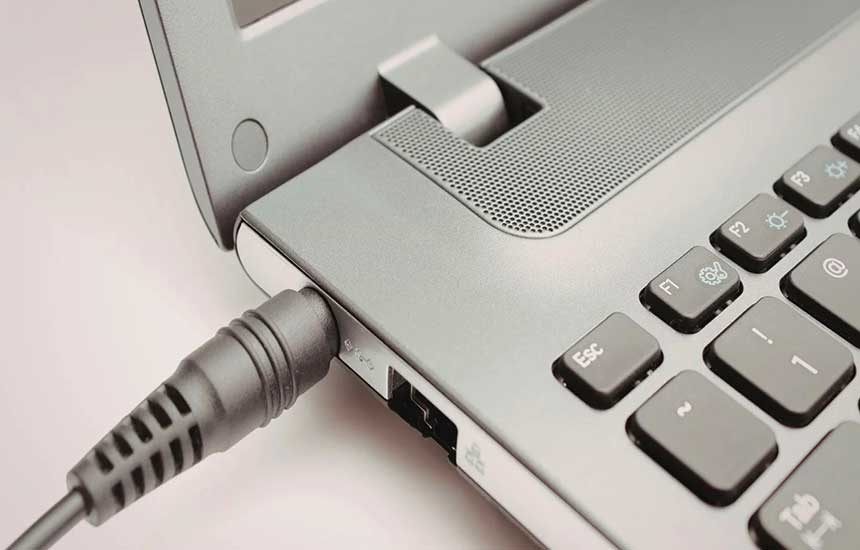
How to Fix a Laptop That Won’t Charge
When a laptop stops charging, the cause may be as simple as a loose cable or an unsuitable power adapter. It can also indicate a damaged charging port, battery problem, or internal hardware fault.
Before buying a replacement battery or paying for a repair, work through the following checks in order. The exact steps vary by laptop model, so consult the manufacturer’s instructions whenever they differ from general advice.
1. Check the Power Outlet
Start with the simplest possibility: the outlet may not be supplying power.
-
Plug a lamp or another suitable device into the same outlet.
-
If you are using a power strip, check its switch and connections.
-
Try a different wall outlet.
-
Avoid testing with an outlet that appears damaged, loose, or discolored.
If other devices also fail to receive power, the problem may be with the outlet or power strip rather than the laptop.
2. Inspect the Charger and Cable
Look for frayed insulation, bent connectors, loose joints, or unusual discoloration. Do not use a charger or cable that is visibly damaged.
Check that the adapter is designed for your laptop. A connector that fits physically does not necessarily provide the correct power.
For USB-C charging, both the charger and cable must support the power requirements of the laptop. A low-power phone charger may charge a small device but may not provide enough power for a laptop.
Do not open the power adapter or attempt to repair a damaged charging cable yourself.
3. Check the Charging Port
Disconnect the charger and inspect the laptop’s charging port under good lighting.
Look for visible damage, a loose connector, or debris. Do not insert metal objects into the port or force a connector that does not fit easily.
If the port moves noticeably, charging works only at a particular angle, or the connector becomes unusually hot, stop using it and arrange a professional inspection.
4. Check Whether the Laptop Recognizes the Charger
Reconnect the charger and look for a charging indicator or battery icon.
If the laptop reports that it is plugged in but not charging, the adapter may be providing power while the battery-management system limits charging.
Some laptops deliberately pause charging when the battery reaches a configured limit, such as 80%, to support long-term battery health. Check the manufacturer’s power-management application before assuming the battery has failed.
5. Check the Battery Charging Limit
Open your laptop’s battery or power-management settings.
Look for features such as battery conservation mode, smart charging, or a maximum charging threshold. The names and available options vary by manufacturer.
If charging consistently stops at the same percentage, this setting may explain the behavior. Change it only if you want the battery to charge beyond that limit.
6. Restart the Laptop
Temporary operating-system or power-management problems can sometimes prevent the charging status from updating correctly.
Save your work, shut down the laptop, disconnect unnecessary accessories, and restart it. Then reconnect the charger and check the battery status.
Some models support a manufacturer-specific power reset. Follow the official instructions for your exact model rather than trying random key combinations or removing internal components.
7. Check Battery Health
If the laptop runs only briefly without the charger, shuts down unexpectedly, or reports a battery service warning, the battery may be worn.
Many operating systems and laptop manufacturers provide battery-health reports or built-in diagnostics. Check those tools before ordering a replacement.
Battery capacity naturally decreases over time, but a charging problem alone does not prove that the battery is defective. The charger, port, or charging circuitry may also be responsible.
8. Check for Software or Firmware Problems
Install operating-system updates and manufacturer-provided firmware updates only through trusted, official channels.
If the problem began immediately after an update, review the manufacturer’s troubleshooting guidance. Avoid downloading unofficial driver packages or firmware from unknown websites.
Do not interrupt a firmware update while it is running. If the laptop cannot remain powered reliably, contact the manufacturer before attempting an update.
9. Know When to Stop Troubleshooting
Stop using the laptop and charger if you notice:
-
A swollen battery or a case that is lifting apart.
-
Smoke, a burning smell, or unusual heat.
-
Sparks or visible electrical damage.
-
A charging port that is melting or severely damaged.
Do not press on, puncture, remove, or attempt to repair a swollen lithium-ion battery. Disconnect power only if it is safe to do so, keep away from the device, and seek qualified service. If there is smoke or fire, move away and contact emergency services.
Quick Troubleshooting Guide
| Symptom | Possible cause | Next step |
|---|---|---|
| No charging light | Outlet, adapter, cable, or port issue | Test a safe outlet and inspect the charger |
| Charging stops at a fixed percentage | Battery limit setting | Check power-management settings |
| Charging works only when the cable is moved | Loose or damaged connector | Stop bending the cable and seek inspection |
| Battery drains unusually quickly | Battery wear or high power use | Check battery health and running applications |
| Laptop becomes unusually hot while charging | Cooling, battery, or electrical fault | Disconnect if safe and arrange service |
Frequently Asked Questions
Can I use my laptop while it is charging?
Usually, yes, if the charger is compatible and the laptop is operating normally. Demanding tasks may increase heat and slow charging. Stop if you notice abnormal heat, a burning smell, or battery swelling.
Does a laptop battery need to be completely drained before charging?
No. Modern lithium-ion batteries generally do not require full discharge before charging. Frequent deep discharges can add unnecessary battery wear.
Should I replace the battery if the laptop won’t charge?
Not immediately. First check the outlet, charger compatibility, port, charging limits, and battery-health diagnostics. A repair technician can distinguish a worn battery from a charging-circuit fault.
Why does my laptop say “plugged in, not charging”?
Possible causes include a configured charging limit, an unsuitable adapter, battery-management software, temperature protection, or a battery or hardware fault. The exact message depends on the operating system and manufacturer.
Final Advice
Start with the outlet, charger, cable, and charging settings before paying for repairs. If the laptop shows signs of battery damage or electrical failure, stop troubleshooting and seek professional help.