

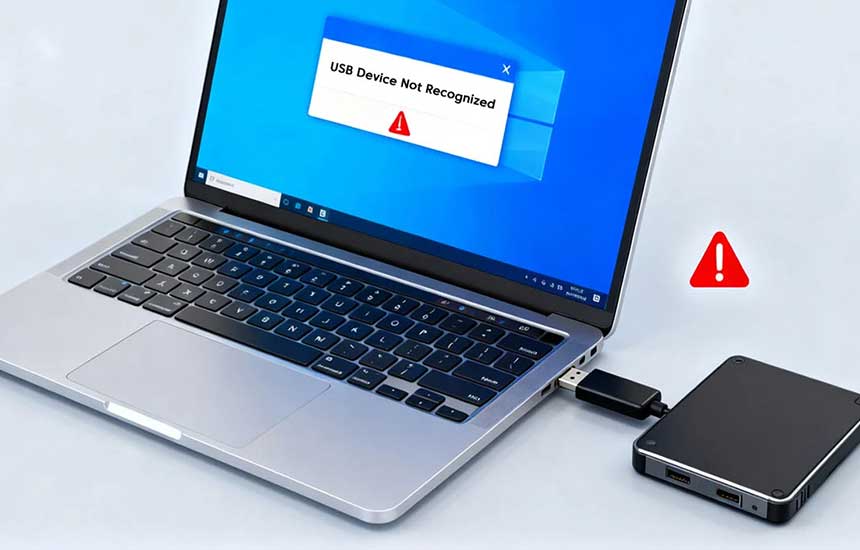
Why Is My USB Device Not Recognized?
When you connect a USB flash drive, keyboard, printer, phone, or external hard drive, your computer may show a message that the device is not recognized. Sometimes the device does not appear at all.
The cause could be a damaged cable, an unreliable port, insufficient power, a driver problem, or a fault with the device itself. Follow these steps to narrow down the cause without risking your files.
1. Check the Physical Connection
Disconnect the device and inspect the connector and cable for visible damage.
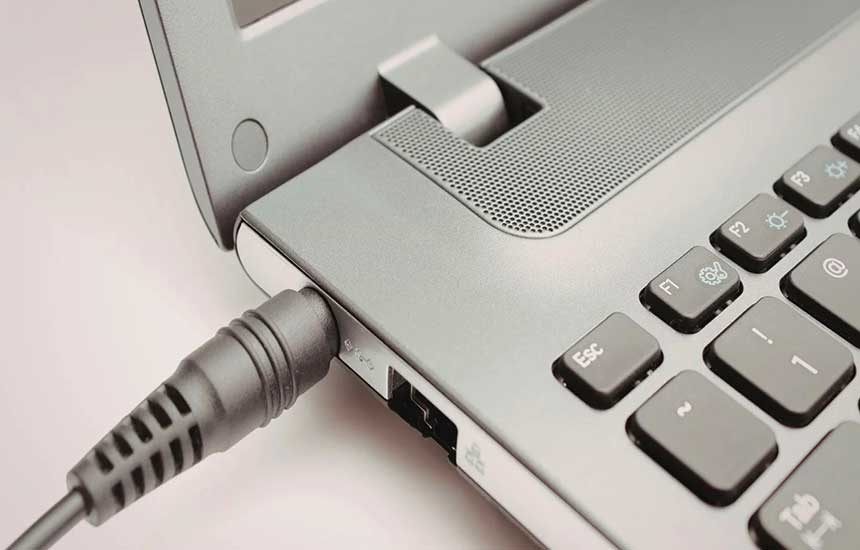
Reconnect it firmly without forcing the plug. If the device uses a detachable cable, try a known-good compatible cable.
A connector that feels loose, is bent, or becomes unusually hot should not be forced into service. Stop using damaged equipment and arrange a repair or replacement.
2. Try Another USB Port
Connect the device to a different USB port on the computer.
If it works in one port but not another, the original port may be damaged, disabled, or unable to provide sufficient power.
On a desktop computer, a port directly on the computer may work more reliably than a port on an unpowered hub. On a laptop, test another available port if possible.
3. Connect the Device to Another Computer
If practical, test the device on another computer that supports it.
- If it works elsewhere, investigate the original computer’s ports, drivers, or operating-system settings.
- If it fails on multiple computers, the device, cable, or required power supply may be at fault.
This test is especially useful before making system changes.
4. Check Whether the Device Needs More Power
Some external hard drives and other devices require more power than a particular port or hub can provide.
Use the manufacturer’s recommended power adapter when one is required. If you are using a USB hub, test a direct connection or a suitable powered hub.
Do not connect an adapter simply because its plug fits. Confirm that its voltage, current capability, polarity where applicable, and connector specification match the manufacturer’s requirements.
5. Restart the Computer
A restart can clear some temporary operating-system or USB-controller problems.
Save your work, disconnect the affected device if appropriate, and restart the computer. After the system is fully running, reconnect the device.
If the issue returns repeatedly, continue troubleshooting instead of relying on restarts as a permanent fix.
6. Check Device Manager on Windows
On Windows, Device Manager can help identify hardware and driver problems.
- Open Device Manager from the Start menu.
- Look under relevant categories, such as Universal Serial Bus controllers, Disk drives, or the device’s own category.
- Check for warning symbols or error messages.
- Read the device status and error details before changing anything.
For an unknown device, record the message or error code. Search the computer manufacturer’s or device manufacturer’s official support resources for that exact code.
Avoid uninstalling multiple USB controllers or changing advanced driver settings without understanding the consequences.
7. Check Disk Management Before Formatting a Drive
If the missing device is a USB storage drive, it may be detected by the computer without appearing in File Explorer.
On Windows, open Disk Management and see whether the drive is listed. It may lack a drive letter or have a partition or file-system issue.
Do not initialize, format, repartition, or erase the drive if it contains files you need. Those actions can make data recovery harder.
If the drive contains important data and is making unusual noises, disconnecting intermittently, or repeatedly disappearing, stop experimenting and consider professional data recovery.
8. Check macOS System Information and Finder
On a Mac, check whether the device appears in Finder or the relevant application. For storage devices, Disk Utility may help establish whether the drive is detected.
System Information can also show connected USB hardware. If the device is visible there but unavailable in an application, the issue may relate to mounting, permissions, file-system compatibility, or software.
Do not erase a disk simply because macOS prompts you to initialize or format it. Confirm that the data is backed up or expendable first.
9. Update Drivers and System Software Carefully
If the problem appears to be software-related, check for operating-system updates and official device drivers.
Download drivers only from the computer or device manufacturer’s trusted support site, or through the operating system’s supported update mechanism.
Be cautious of generic driver-update utilities from unknown sources. They may install incorrect software or introduce security risks.
10. Check Compatibility and Device Condition
Some devices require specific operating systems, applications, file systems, or connection standards. A USB-C connector does not guarantee that every device supports the same data rate, video output, or charging features.
Check the product documentation for compatibility requirements. Also consider whether the device has been dropped, exposed to liquid, or physically damaged.
If multiple computers fail to detect a device that previously worked, hardware failure becomes more likely.
Troubleshooting Table
| Symptom | What to check first |
|---|---|
| Device works on another computer | Original computer’s port, drivers, or settings |
| Device appears but files do not | Drive letter, mounting, file system, or permissions |
| External drive repeatedly disconnects | Cable, power supply, port, or drive condition |
| USB keyboard or mouse fails in one port | Try another port and inspect for damage |
| Computer prompts to format a drive | Stop if the drive contains important files |
Frequently Asked Questions
Why does my USB device work on one computer but not another?
The difference may be a faulty port, missing driver, incompatible software, power limitation, or operating-system setting. Compare the connection on both systems before changing advanced settings.
Should I format a USB drive that is not recognized?
Not if you need the files on it. Formatting can erase data. First determine whether the drive is detected by the operating system and whether the problem may be related to the port, cable, partition, or file system.
Does USB-C mean the device will work with every USB-C port?
No. USB-C describes the connector shape, not every capability. Supported data rates, charging power, display output, and other functions depend on the device, cable, and port specifications.
When should I stop troubleshooting?
Stop if the device or connector becomes unusually hot, shows physical damage, smells burnt, or contains important data and appears to be failing. Professional assessment may be safer than repeated connection attempts.
Final Advice
Start with the cable, port, and another computer. Then check power and operating-system diagnostics. For storage devices, protect the data first: never format or initialize a drive until you understand what will happen to its contents.