

How to Extend Your Smartphone Battery Life
A smartphone battery that runs down before the end of the day can be frustrating. High screen brightness, demanding applications, weak cellular signals, background activity, and battery aging can all contribute.
You do not need to disable every useful feature to save power. Start with the changes that have the greatest impact on your normal usage.
1. Reduce Screen Brightness
The display is often one of the largest sources of power consumption.
Use automatic or adaptive brightness if it works well for you, or lower the brightness manually when indoors. Reduce the screen timeout so the display switches off when you are not using it.
If your phone has an always-on display, try turning it off or limiting its features to see whether battery life improves.
2. Check Which Apps Use the Most Battery
Open the battery section in your phone’s settings. Most modern smartphones show which apps have consumed the most energy over a recent period.
Look for apps that use substantial power even when you rarely open them. Possible causes include continuous location access, frequent background refreshes, heavy uploads, or a software bug.
Do not automatically remove every app near the top of the list. Navigation, video, games, and camera apps may legitimately use more power when you use them frequently.
3. Limit Unnecessary Background Activity
Some apps refresh content, synchronize files, or check for updates while you are not actively using them.
Review background-activity permissions and disable unnecessary activity for apps that do not need constant updates. Keep essential functions, such as messaging notifications or work synchronization, enabled when you depend on them.
The names of these settings vary between Android and iOS versions.
4. Use Battery Saver Mode
Battery Saver, Low Power Mode, or a similar feature can reduce background work, visual effects, and other power-consuming activities.
Use it when the battery is low or when you need the phone to last longer away from a charger. Depending on the phone, it may delay synchronization or reduce performance.
5. Pay Attention to Weak Cellular Signals
A phone may use more power while trying to maintain a connection in an area with weak cellular coverage.
If battery drain repeatedly occurs in a location with poor reception, consider using trusted Wi-Fi calling if your carrier and phone support it. If you do not need cellular service temporarily, airplane mode can reduce radio activity, but it also disconnects normal cellular calls and data unless you manually re-enable supported connections.
6. Turn Off Connections You Do Not Need
Wi-Fi, Bluetooth, location services, and mobile data do not all consume the same amount of energy in every situation. Their impact depends on the phone, signal conditions, and connected devices.
Turn off a connection when you have a clear reason to do so, but do not expect disabling every radio to produce a dramatic improvement. For example, Bluetooth can be useful for a watch or hearing device, and Wi-Fi may use less power than a weak cellular connection.
7. Adjust Location Permissions
Some apps need location access only while you are using them. Others may need it continuously for navigation, safety, or tracking functions.
Review location permissions and choose the least extensive option that still supports the feature you need. Check background location access in particular.
Avoid disabling location services indiscriminately if you rely on emergency, navigation, or device-finding features.
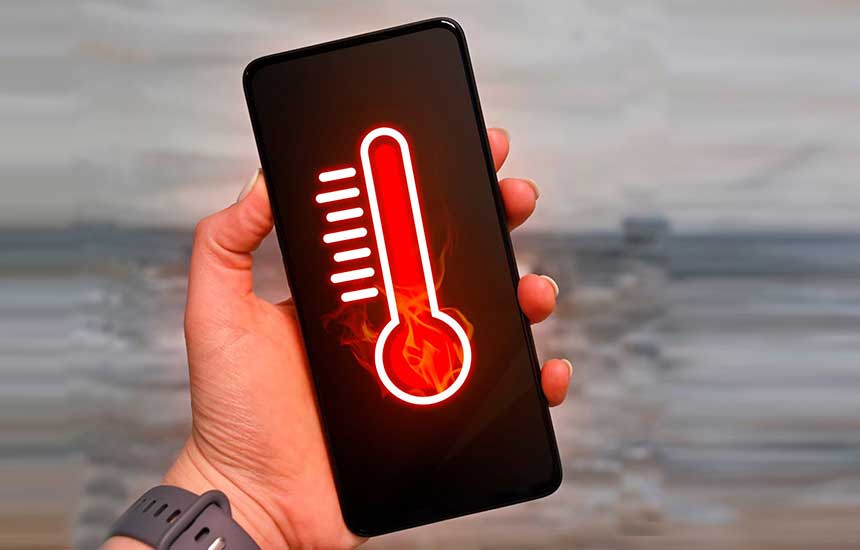
8. Keep Your Phone at a Moderate Temperature
Heat can accelerate battery aging and may cause a phone to limit performance or charging.
Avoid leaving your phone in direct sunlight, inside a hot car, or under bedding while charging. If it becomes unusually hot, stop demanding tasks and let it cool naturally.
Do not put a hot phone in a refrigerator or freezer. Rapid temperature changes and condensation can cause damage.
9. Use Sensible Charging Habits
Modern smartphones generally do not need to be completely discharged before charging. Partial charging is normal.
If your phone offers optimized charging or a charge limit, consider enabling it when it suits your routine. These features can reduce the time the battery spends at a high charge level, which may help preserve battery health over time.
Use a compatible charger and cable from a reputable source. Avoid damaged charging accessories.
10. Update Your Phone and Apps
Software updates sometimes fix excessive battery use or improve power management. If battery drain starts after an update, allow time for temporary background tasks to finish, then check battery usage again.
Install updates from official system settings or trusted app stores. If a particular app consistently consumes unusually high power, update it or investigate its settings.
11. Reduce Unnecessary Notifications
Every notification does not necessarily drain a large amount of power, but frequent screen wake-ups, vibrations, and background activity can add up.
Disable notifications from apps that do not need your immediate attention. Keep alerts that are important for safety, work, family, or security.
12. Check Battery Health
If your phone drains much faster than it used to despite similar use, the battery may have lost capacity.
Look for a battery-health feature, service recommendation, or diagnostic tool provided by your phone’s manufacturer. A worn battery may need professional replacement.
Stop using the phone and seek qualified service if the battery is swollen, the screen is lifting, or the device develops abnormal heat or a chemical smell. Do not puncture or attempt to replace a damaged battery unless the manufacturer specifically provides a safe, appropriate procedure for your device and skill level.
Quick Battery-Saving Checklist
-
Lower screen brightness and shorten screen timeout.
-
Check battery usage by app.
-
Restrict unnecessary background activity.
-
Use Battery Saver when needed.
-
Review location permissions.
-
Avoid excessive heat.
-
Enable optimized charging if appropriate.
-
Check battery health if performance has declined significantly.
Frequently Asked Questions
Should I close all apps to save battery?
Not necessarily. Modern operating systems manage background applications automatically. Force-closing every app may offer little benefit and can sometimes increase power use when apps must restart. Focus on apps that show unusually high background consumption.
Does charging overnight damage a smartphone battery?
Phones include charging-management systems, but long periods at high charge levels and elevated temperatures can contribute to battery aging. Optimized charging or a charge limit may help where available. Follow the manufacturer’s recommendations for your device.
Is fast charging bad for battery health?
Fast charging produces more heat and uses higher charging power, but compatible phones and chargers are designed to manage charging within supported limits. Temperature, charging control, and usage patterns all affect long-term battery health.
When should I replace my phone battery?
Consider a professional battery assessment when capacity has declined enough to interfere with daily use, the phone shuts down unexpectedly, or the system recommends service. Swelling or physical damage requires prompt attention rather than continued use.
Final Advice
Begin with battery-usage statistics and screen settings rather than disabling every feature. If the phone is still losing charge unusually quickly, check for software issues and battery wear. Battery-saving settings can improve runtime, but they cannot restore the original capacity of an aged battery.