

Start With the Signal Path, Not the Monitor Settings
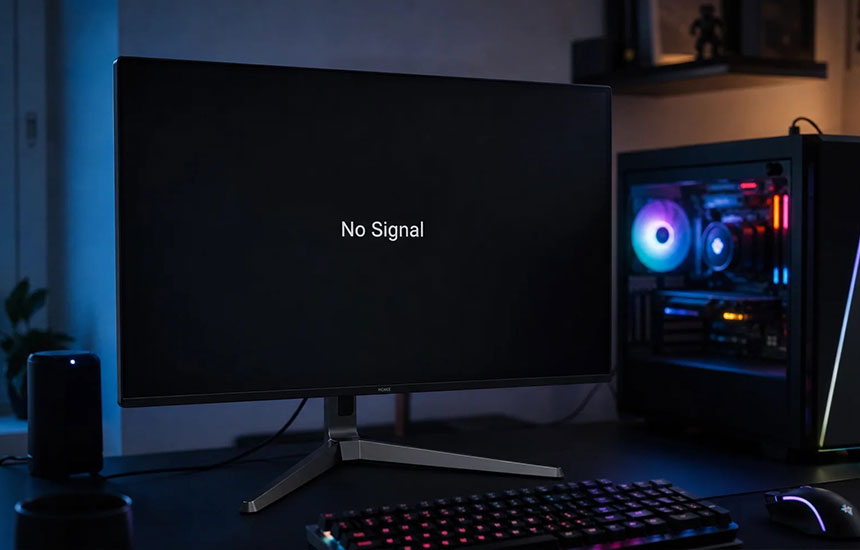
A monitor displaying “No Signal” is usually telling you that it is not receiving a usable video signal from the connected device.
That does not necessarily mean the screen is broken. The problem could be the selected input, cable, computer port, graphics output, or the computer itself.
The most efficient approach is to check the connection from one end to the other before changing advanced display settings.
Step 1: Confirm the Monitor Is on the Correct Input
Many monitors have more than one video input, such as HDMI, DisplayPort, or USB-C.
Open the monitor’s on-screen menu and check the selected input. If the computer is connected through HDMI but the monitor is set to DisplayPort, it may show “No Signal” even when both devices are working.
If the monitor has an automatic input-selection feature, you can try it, but manually selecting the connected port is often clearer during troubleshooting.
Step 2: Check Both Ends of the Cable
Turn off the monitor and computer before reconnecting the video cable.
Remove and firmly reconnect the cable at both ends. Check for bent connectors, damaged insulation, loose ports, or visible debris.
If you use an adapter, docking station, or USB-C hub, remember that every additional connection creates another possible point of failure.
For a simple test, connect the monitor directly to the computer if the available ports allow it.
Step 3: Try Another Cable or Port
A cable can fail even when it looks undamaged.
If possible:
- Test with a known-working HDMI or DisplayPort cable.
- Try another compatible video input on the monitor.
- Try another video output on the computer.
- Test the monitor with a different computer or laptop.
Change only one item at a time. If you replace the cable, adapter, and computer port simultaneously, you will not know which change solved the problem.
Step 4: Check Where the Cable Is Connected
Desktop computers may have video outputs on the motherboard and on a separate graphics card.
If the computer has a dedicated graphics card, the monitor generally needs to connect to the graphics card’s video output rather than an unused motherboard port. The correct arrangement depends on the computer’s hardware configuration.
Do not move internal components while the computer is powered on. If you are unsure which port is correct, check the computer or graphics-card documentation.
Step 5: Check Whether the Computer Is Actually Starting
Look and listen for signs that the computer is powering on:
- Do fans or indicator lights start?
- Does the keyboard respond?
- Does the computer restart repeatedly?
- Are there diagnostic lights or beep codes?
A computer that fails to complete startup may not send a video signal at all. In that case, changing monitor settings is unlikely to solve the problem.
For a laptop connected to an external display, check whether the laptop itself has started and whether its display-output mode is configured correctly.
Step 6: Consider Resolution and Refresh Rate Problems
If the monitor works during startup but loses the signal when the operating system loads, the selected resolution or refresh rate may be unsupported by the display.
If you can access the computer using another working screen, select a resolution and refresh rate supported by the monitor. Check the monitor’s documentation for its supported modes.
Avoid installing random display drivers or changing firmware settings before confirming the basic connection.
A Simple Troubleshooting Table
| What you notice | What to check |
|---|---|
| No Signal immediately after switching on | Input selection and cable connection |
| Monitor works with another computer | Original computer’s output or startup |
| Another cable fixes the issue | Original cable |
| Signal disappears after login | Resolution, refresh rate, or graphics driver |
| Computer repeatedly restarts | Startup or hardware problem |
| Laptop screen works but external monitor does not | Output mode, port, adapter, or cable |
Frequently Asked Questions
Why does my monitor say No Signal even though the computer is on?
The computer may be powered on without completing startup, or it may be sending video through a different output. Check the input source, cable, and selected computer port.
Can a bad HDMI cable cause No Signal?
Yes. A damaged or incompatible cable can prevent a stable video connection. Testing with a known-working cable is a useful way to isolate the issue.
Why does my monitor work during startup but go black later?
The operating system may be switching to an unsupported resolution or refresh rate, or a graphics driver may be causing a problem.
Do I need a new monitor?
Not necessarily. Test the monitor with another device before replacing it. If it works normally with another computer, the original computer or its connection is more likely to be responsible.
Final Advice
Work from the simplest explanation toward the more complicated ones: input selection, cable seating, cable replacement, port choice, computer startup, and display settings. Testing one change at a time makes it much easier to identify the actual cause.