

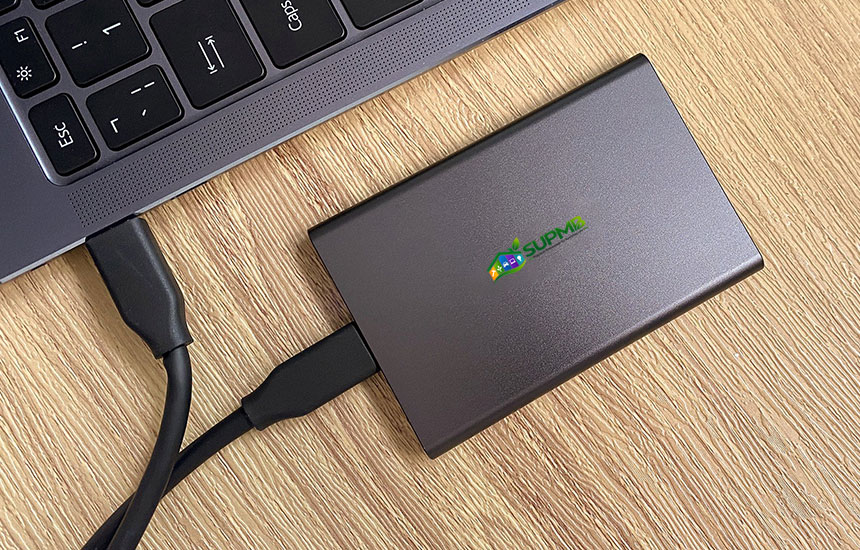
An external solid-state drive (SSD) provides portable storage for documents, photos, videos, projects, and computer backups. Compared with traditional external hard disk drives, SSDs have no spinning disks or moving read/write heads, making them generally more resistant to movement-related mechanical damage.
However, external SSDs vary in capacity, interface, speed, durability, and compatibility. A drive with a high advertised transfer speed may not reach that speed when connected to an older computer port.
This guide explains the specifications that matter and how to select an external SSD for different everyday uses.
1. Decide How Much Storage You Need
Start by estimating the amount of data you plan to store.
| Typical use | Storage considerations |
|---|---|
| Documents and everyday files | A modest capacity may be sufficient |
| Photos and personal media | Allow room for growing photo libraries |
| Large video files | Higher capacity may be more practical |
| Creative projects | Consider both project size and working-file requirements |
| Computer backups | Capacity should account for the data being backed up and future growth |
Do not choose capacity based only on the amount of data you have today. Leave room for future files and temporary working space.
Also remember that the usable capacity shown by your operating system may differ from the advertised capacity because of formatting and measurement conventions.
2. Understand External SSD Connection Types
The connection interface affects how quickly data can move between the drive and computer.
Common interfaces include:
- USB 3.x connections with different speed classes.
- USB-C connectors supporting different USB data standards.
- Thunderbolt connections on compatible devices.
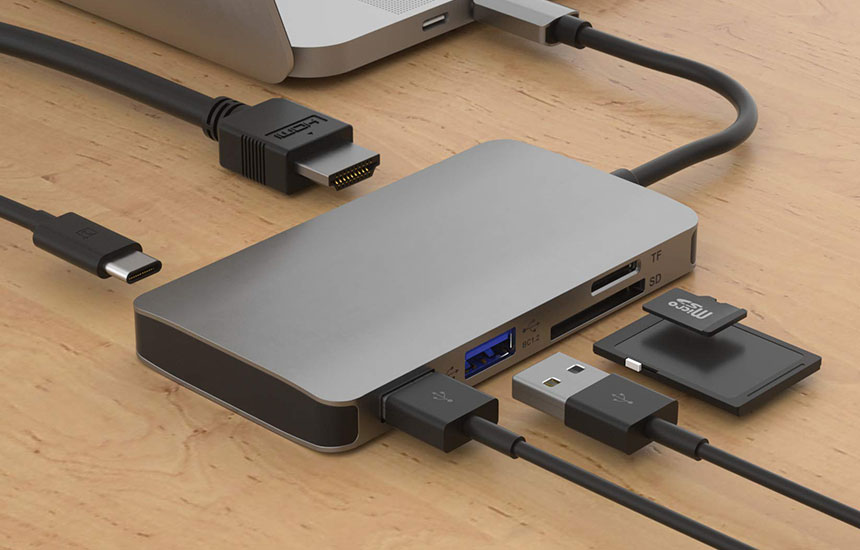
The physical USB-C connector does not guarantee a particular data speed. A USB-C port may support a range of capabilities depending on the computer.
Check both the drive and the computer specifications. The actual connection speed is limited by the slowest part of the chain.
3. Compare Realistic Transfer Speeds
Manufacturers may advertise maximum sequential read and write speeds. These figures are useful for comparison but do not represent every real-world task.
Actual performance can depend on:
- Computer port capabilities.
- Cable quality and specification.
- Drive controller and flash memory.
- File size and number of files.
- Available storage space.
- Temperature and sustained workload.
- Operating system and file system.
Moving one large video file may produce different results from transferring thousands of small documents.
For everyday document storage, extreme speed may not be necessary. For large media projects, faster interfaces and sustained write performance may be more important.
4. Choose the Right Physical Design
External SSDs come in different shapes and sizes.
Compact portable drives
These are convenient for carrying in a laptop bag or pocket. Check whether the enclosure provides adequate protection for regular transport.
Rugged drives
Some drives have reinforced housings or protective features intended to improve resistance to drops, dust, or water.
Check the exact protection rating and test conditions. A general description such as “rugged” does not guarantee waterproofing or protection against every type of impact.
Enclosed SSDs and DIY enclosures
Some users buy an SSD and a separate enclosure. This can provide flexibility, but compatibility must be checked carefully.
Confirm the drive form factor, interface, enclosure support, thermal design, and required cable.
5. Check Compatibility With Your Computer
Before buying, confirm:
- Supported USB or Thunderbolt standards.
- Available ports and connector types.
- Operating-system compatibility.
- File-system requirements.
- Whether special drivers or software are needed.
- Whether the drive can be used with other devices such as tablets or game systems.
A drive formatted for one operating system may not offer full read-and-write compatibility with another without reformatting or additional software.
Reformatting can erase existing data. Back up important files before changing a drive’s file system.
6. Consider Security and Data Protection
An external SSD may contain private documents, personal photographs, or business files.
Consider whether you need:
- Hardware or software encryption.
- Password protection.
- Secure storage when travelling.
- A separate backup copy.
- Protection against accidental deletion or malware.
Encryption can protect data if a drive is lost, but it does not replace backups. Keep recovery information secure and accessible.
7. Understand SSD Durability and Lifespan
SSDs use flash memory, which has finite write endurance. However, for many everyday users, a suitable drive can provide years of service.
When comparing specifications, consider:
- Warranty period.
- Published endurance information, where available.
- Operating temperature range.
- Thermal management.
- Expected workload.
- Reliability and support information.
Do not assume that a metal enclosure automatically means better reliability. Internal components and thermal design also matter.
8. Choose an External SSD for Different Uses
Everyday file storage
Prioritize suitable capacity, convenient size, and compatibility. The fastest available interface may not provide meaningful benefits for simple document storage.
Photo and video work
Consider higher capacity, sustained write performance, and a connection that matches the computer’s ports.
Computer backups
Choose enough capacity for the backup method you intend to use. Set up a regular schedule and keep another copy of important data separately.
Travel and field work
A compact enclosure and suitable impact protection may be useful. Keep important files backed up rather than relying on one portable drive.
9. Common Buying Mistakes
- Choosing an SSD based only on advertised maximum speed.
- Ignoring the computer’s port capabilities.
- Buying insufficient capacity.
- Assuming every USB-C cable supports the same data speed.
- Ignoring compatibility with other operating systems.
- Treating water-resistance claims as universal.
- Using an external SSD as the only copy of important files.
- Disconnecting the drive while data is being written.
Use the operating system’s safe removal procedure where applicable, and wait for file transfers to finish before disconnecting the drive.
Frequently Asked Questions
Is an external SSD better than an external hard drive?
An SSD is generally faster and more resistant to mechanical shock because it has no moving parts. A traditional hard drive may offer more storage capacity for the same budget. The better option depends on speed, portability, capacity, and cost.
How much external SSD storage do I need?
Estimate the size of your current files, then allow room for future growth and backup requirements. Video and creative projects often need more space than ordinary documents.
Does a faster external SSD work with an older computer?
It may work if the connectors and standards are compatible, but its speed will usually be limited by the computer’s interface.
Can I use one external SSD with Windows and Mac computers?
Often yes, but the file system matters. Check cross-platform compatibility before formatting the drive. Reformatting may erase existing data.
Can an external SSD replace cloud storage?
It can provide local storage and backup, but it does not provide the same off-site protection as a separate cloud or remote backup. Important data should have more than one copy.
Final Advice
Choose an external SSD based on your actual storage needs, computer interface, file sizes, and portability requirements.
Check the complete connection specification rather than relying on the connector shape or a headline speed figure. For important files, use a backup strategy that does not depend on a single drive.